
A laptop can feel warm during normal use, but repeated shutdowns, a sudden performance drop, unusually loud cooling noise, or heat concentrated in one area deserves a clearer record. People searching for laptop overheating repair Putrajaya usually need to know what to stop doing and which observations will help an inspection.
This guide uses a when-where-load-airflow map. It does not assume that dust, a fan, software, a battery, or one internal component is responsible. Similar heat symptoms can have different causes, so the useful first step is to describe the pattern without stress-testing the laptop.
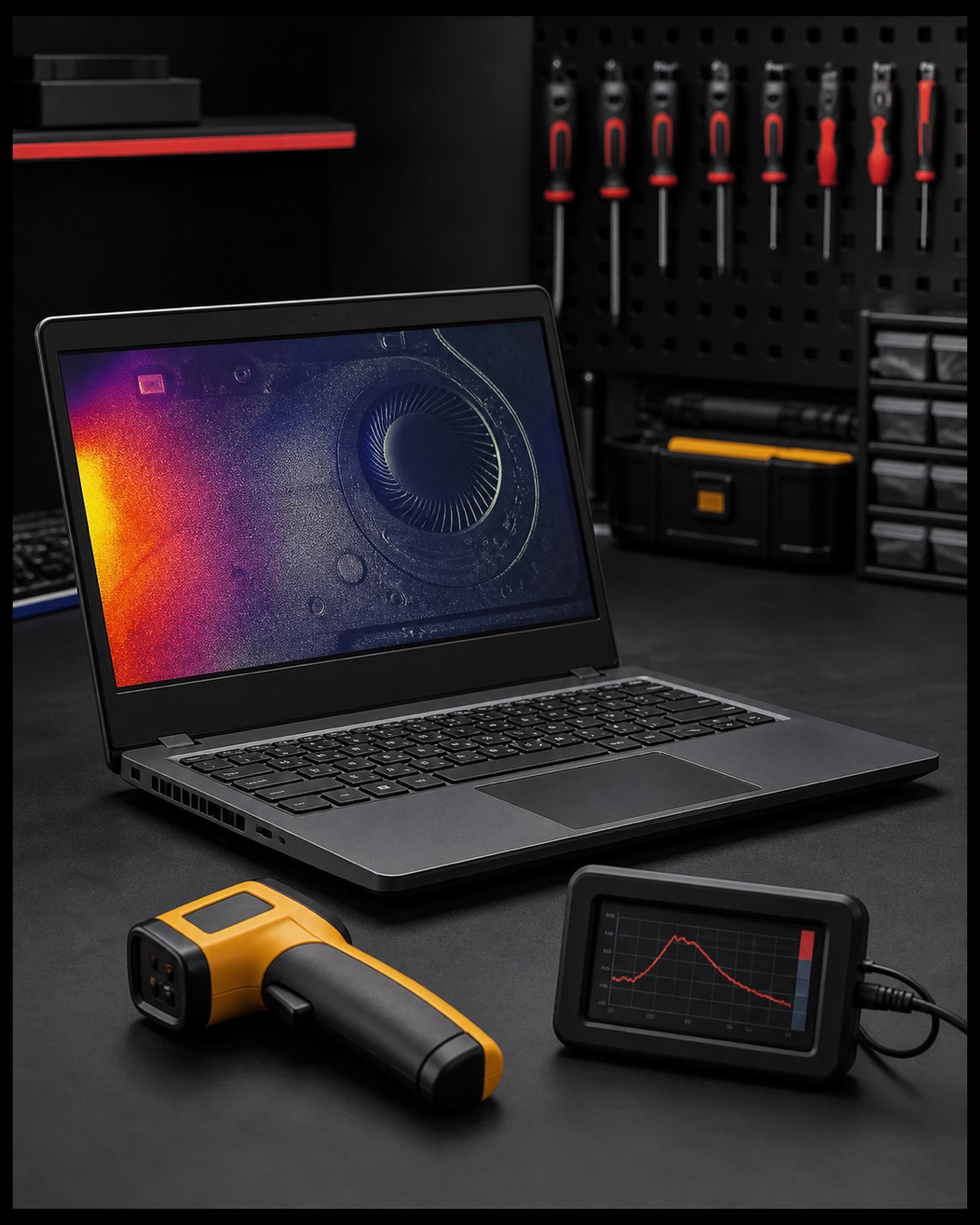
Map when the heat appears
Write down the task that was running when the laptop became uncomfortable to use. Separate a short warm-up during charging or a demanding application from heat that begins at startup, while idle, or during light browsing. Note how long the laptop had been on, whether it was connected to power, and whether the behaviour is new.
Do not run a game, benchmark, or repeated restart just to reproduce the issue. One accurate observation from normal use is more useful than forcing the laptop into the same condition again.
Use the four-part heat-clue checklist
1. Where is the heat strongest?
Without blocking vents or pressing the casing, note whether the warmth is concentrated near the side exhaust, keyboard, palm rest, rear edge, charger connection, or bottom cover. A location is not a diagnosis, but it helps prevent the broad description “the whole laptop is hot.”
2. What happens to performance?
Record whether the laptop slows gradually, freezes, shows a warning, switches off, restarts, or continues normally. Capture the exact message when one appears. Do not assume that a slowdown proves a cooling fault, because software load, storage activity, power behaviour, and heat can overlap.
3. What can you hear or feel near the vents?
From a normal working distance, note whether fan noise is steady, repeatedly rises and falls, sounds rough, or is absent when the laptop is clearly warm. Also note whether air appears to leave the exhaust. Do not insert tools, brushes, compressed air, or liquid into a vent.
4. What changed before the symptom?
Useful context includes a recent update, drop, liquid exposure, battery or charger change, previous repair, long storage period, blocked vent, or new workload. Report the timing without claiming that the event caused the fault.
Three examples that create different inspection briefs
- Heat during charging only: record the adapter used, battery message, connector behaviour, and the area that becomes warm.
- Loud fan followed by slower performance: note the application, how long it ran, and whether normal speed returned after the laptop cooled while switched off.
- Sudden shutdown with no warning: write down the workload, power state, remaining battery indication, and whether the laptop restarted normally later.
These examples are observation templates, not proof of a failed part. An inspection should separate external airflow conditions, software load, cooling behaviour, power delivery, battery condition, and other hardware signs before the next step is decided.
Know when to stop using the laptop
Shut the laptop down and disconnect external power if there is smoke, a burning smell, hissing, liquid exposure, a lifting case, a raised trackpad, or heat that makes safe handling difficult. Place it on a stable non-flammable surface away from pressure and direct heat. Do not press a lifted panel flat or keep charging it for another test.
If lid movement or casing separation is part of the problem, use the laptop hinge safety checklist. If the main concern is general lag without abnormal heat, compare the slow laptop inspection guide.
WhatsApp MRFIX Putrajaya about the laptop heat pattern

Prepare for a Putrajaya laptop inspection
- Record the full laptop brand and model.
- Bring the normal charger separately and stop using it if damaged or unusually hot.
- Write down the task, power state, heat location, fan sound, and exact warning.
- Mention any drop, spill, update, previous repair, or new accessory.
- Do not share passwords in the booking form.
Visit MRFIX Putrajaya at A-6A, 1st Floor, Blok A, Jalan Seluang P8/7, Presint 8, 62250 Putrajaya. Contact 019-910 0531. The available option depends on the model and condition found; this page does not promise a price, repair time, stock, warranty, or outcome.
Book a laptop heat inspection
Frequently asked questions
Does a hot laptop always need a new fan?
No. Heat, noise, airflow, workload, power behaviour, and physical condition should be considered together before the repair scope is decided.
Should I use compressed air through the vents?
Do not insert tools or force air or liquid into the laptop as a diagnostic test. Record the symptom and arrange an inspection instead.
What information should I send first?
Send the model, the task being performed, where the heat is strongest, whether the charger was connected, and any warning or shutdown pattern.