
A location dot that jumps across the map, stays grey, points the wrong way or disappears can interrupt navigation, delivery apps and location sharing. People searching for phone GPS repair Putrajaya need a useful way to separate one-app behaviour from a wider location problem before assuming that a physical part has failed.
This guide uses an app-signal-device map. It helps you record what the phone does, where it happens and which settings or conditions change the result. It is preparation for an inspection, not a remote diagnosis.
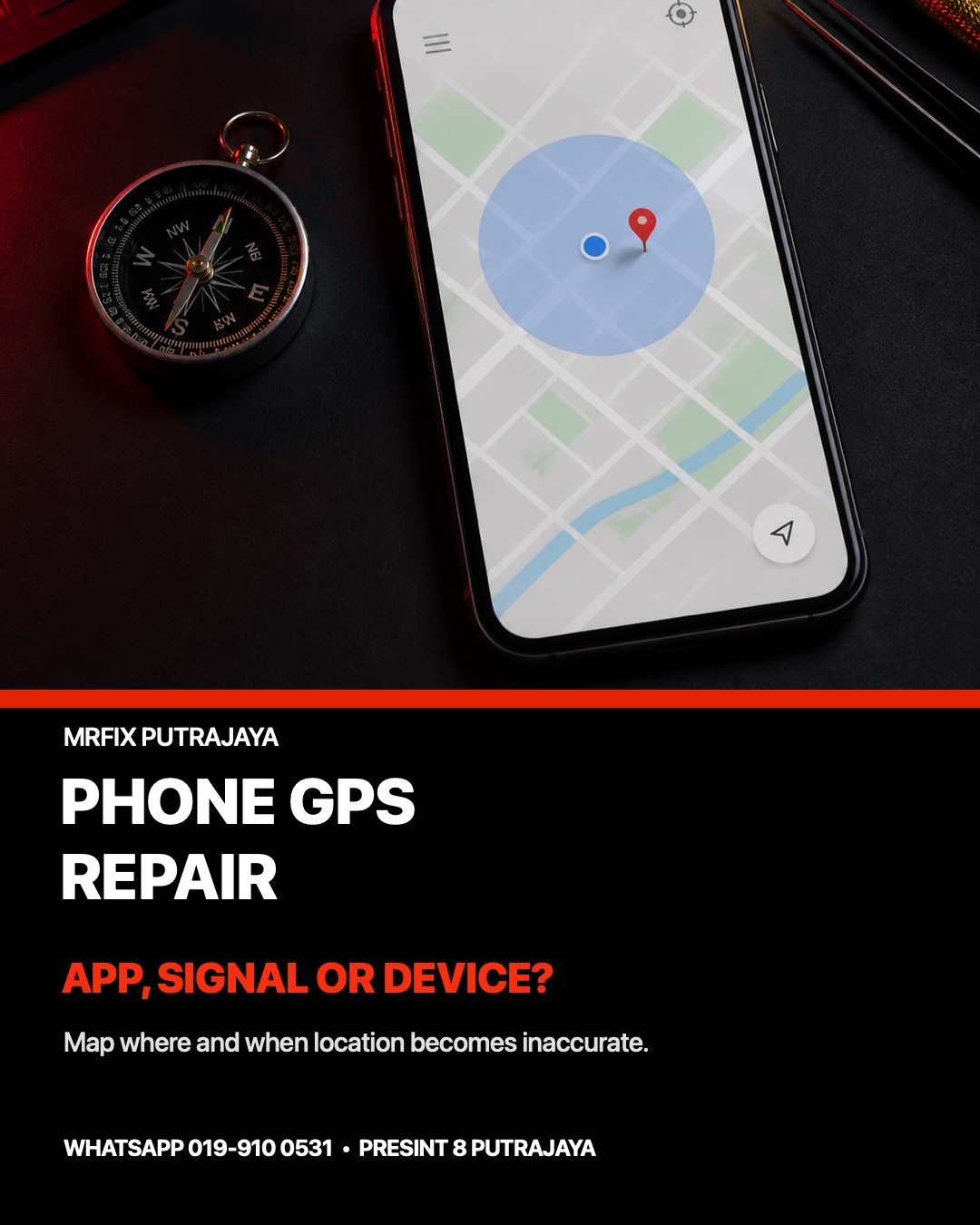
Start with the exact GPS symptom
“GPS not working” can describe several different outcomes. Open a map outdoors in a safe, open place and note which pattern appears. Is the blue dot missing, surrounded by a wide accuracy circle, slow to update, travelling in the wrong direction, or repeatedly showing a lost-signal message? Do not test while driving. A short written observation is more useful than repeating the route many times.
Also record whether the problem began after an operating-system update, a drop, liquid exposure, a case change or a repair. These facts do not identify the cause, but they give the inspection a clear timeline.
Use the app-signal-device decision map
1. Compare one app with another
Check whether location fails only in one navigation or delivery app, or across two different apps that are allowed to use precise location. If one app works and another does not, save the affected app name, its permission state and whether the problem changes after the app is reopened. Avoid deleting important app data or resetting the phone simply to create a test.
2. Compare indoor and outdoor behaviour
Satellite signals may be weaker inside a building, underground or among tall structures. Compare the same phone in an open outdoor area without walking into traffic or exposing it to rain. A location that becomes stable outdoors is a different service clue from a reading that stays inaccurate everywhere.
3. Check permissions and accuracy settings
Confirm that Location is enabled and the affected app has the intended permission. On supported Android versions, precise location is controlled per app. Battery saver, airplane mode, disabled Wi-Fi or mobile data, and an uncalibrated compass can also change the reading. Record the setting you changed and the result; do not toggle many settings at once.
4. Decide whether the pattern follows the device
If several permitted apps fail in the same open location while another phone can locate itself, the device deserves closer inspection. That comparison still does not prove an antenna, sensor or board fault. Model, physical condition, software state and signal environment all need to be considered together.
Three examples worth recording
Example: one delivery app stays inaccurate
The map works normally, but a delivery app places the phone one street away. Record the app name, precise-location permission and whether the same result appears on Wi-Fi and mobile data. This is an app-specific pattern until wider testing shows otherwise.
Example: the map loses location only indoors
The dot is stable outdoors but becomes wide or grey in a parking structure. Record the environment rather than labelling the phone faulty. Buildings can obstruct satellite signals, so location context matters.
Example: every app jumps after a drop
Two navigation apps show the same unstable reading outdoors and the issue started after impact. Stop repeating risky route tests. Bring the model, impact history and screenshots for an inspection.
What to prepare before visiting MRFIX
- Phone brand, exact model and operating-system version.
- The affected app names and their location-permission settings.
- Whether the symptom appears indoors, outdoors or in both places.
- Screenshots of the wide circle, grey dot or lost-signal message without private addresses.
- The last change before the issue began, including impact, liquid, update or case change.
Keep account passwords and private destinations to yourself. MRFIX Putrajaya can inspect phones and Android devices, while the existing Android phone repair preparation guide explains what device details to bring. If several functions have stopped together, use the general phone inspection checklist to organise the wider symptoms.
WhatsApp MRFIX Putrajaya about the GPS symptom

Visit or book a phone inspection in Putrajaya
MRFIX Putrajaya is at A-6A, 1st Floor, Blok A, Jalan Seluang P8/7, Presint 8, 62250 Putrajaya. Call 019-910 0531 or send the model, symptom pattern and preferred date through the booking form. An inspection is needed before any repair decision.
Phone GPS repair FAQ
Does a wide blue circle prove the GPS hardware is damaged?
No. It shows that the phone has low confidence in the current location. Permissions, signal environment, accuracy settings and app behaviour should be recorded before hardware is suspected.
Should I test the phone while driving?
No. Test from a safe stationary place or let a passenger observe. A short outdoor comparison is enough to create a useful inspection brief.
Can MRFIX confirm the cause from a screenshot?
A screenshot can show the symptom but not the cause. The phone model, settings, environment, physical history and live behaviour need to be considered during inspection.