
A laptop keyboard fault can look simple until the wrong characters appear in a form, a key repeats during work, or an entire row stops responding. Customers searching for laptop keyboard repair Putrajaya usually need to know whether the issue is limited to one key, affects a keyboard zone, or involves the laptop more broadly. This guide gives you a safe way to record the pattern before an inspection, without guessing which part needs attention.
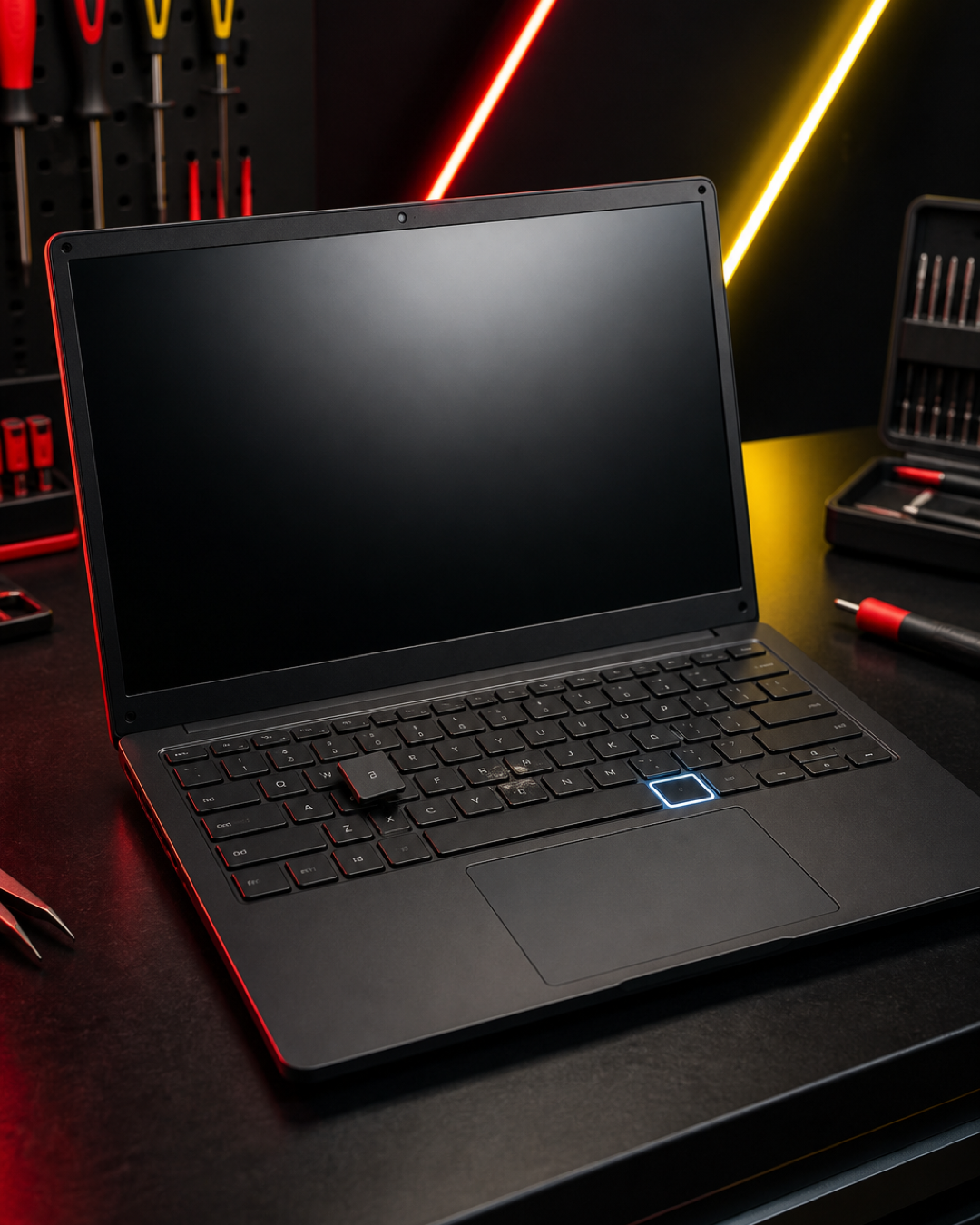
Quick outline: map the keyboard fault
- Identify whether one key, a row, a zone, or the whole keyboard is affected.
- Compare physical key movement with the character that appears on screen.
- Record any spill, impact, heat, swelling, or earlier repair.
- Prepare the laptop model and a short symptom example for inspection.
Start with the pattern, not a part name
Open a blank document and test only the keys you normally use. Do not hold a faulty key down for a long time. Note whether the same character appears every time, a different character appears, one press creates several characters, or nothing happens. If the laptop is entering text by itself, stop the test and shut it down normally when possible.
One key behaves differently
A single key may feel loose, sit higher than its neighbours, stick after a press, or produce no character. Do not pull off the keycap or push tools under it. The keycap, its retaining mechanism, the keyboard layer, and the surrounding case need to be viewed together before a repair choice is made.
A row or keyboard zone fails
If several nearby letters, numbers, or function keys fail together, record the exact group. A row-shaped pattern gives different inspection information from one isolated key. Also note whether the trackpad, power button, backlight, or external ports changed at the same time.
The whole keyboard stops responding
Check whether the laptop itself is still responsive by using the trackpad and normal on-screen controls. If available, a known-working external keyboard can help show whether the operating system still accepts input. This comparison does not diagnose the internal keyboard, but it creates a useful symptom record.
Three examples worth recording
- Sticky key after a drink spill: stop using the laptop, disconnect power when safe, and do not keep pressing the wet area. Record what was spilled and when.
- Repeating key with no spill: note the character, whether it repeats immediately or after typing for a while, and whether restarting changes the behaviour.
- Several dead keys after an impact: photograph the affected side and mention whether the chassis, hinge, or screen also moved.
Send your laptop model and keyboard fault pattern to MRFIX Putrajaya
When to stop testing
Stop using the laptop if liquid may be inside, the case is lifting, the trackpad is raised, the device is unusually hot, or there is a burning smell. Do not dry a spill with direct heat and do not open the case at home. These conditions need careful handling because the visible keyboard symptom may not be the only issue.
Prepare a useful inspection request
Bring the exact laptop brand and model when available. Write down the affected keys, the first event you noticed, and whether an external keyboard works. If the fault is intermittent, a short video of the screen and key response can be more useful than repeated testing at the counter. Do not send passwords in a message.
If the laptop also starts slowly or freezes, compare the laptop performance and upgrade guide. If it shows no power, lights, fan movement, or display response, use the laptop no-power preparation guide instead. This keyboard page complements those articles by focusing specifically on input patterns.

Visit MRFIX Putrajaya
Address: A-6A, 1st Floor, Blok A, Jalan Seluang P8/7, Presint 8, 62250 Putrajaya
Phone: 019-910 0531
Book a laptop keyboard inspection
Frequently asked questions
Does one dead key mean the complete keyboard must be replaced?
Not necessarily. The keycap, retaining mechanism, keyboard assembly, and surrounding condition should be inspected before the required work is decided.
Should I remove a sticky keycap before visiting?
No. Leave it in place and describe how it feels. Pulling it off can add damage or lose small parts.
Can I keep working with an external keyboard?
An external keyboard may be a temporary input method, but stop using the laptop if there was a spill, heat, swelling, a smell, or physical damage.