
When Face ID stops recognising you, the message on screen does not identify the failed part. The cause may be as simple as an obstructed sensor area or as complex as hardware that needs inspection. This guide explains the safe checks to make before seeking iPhone Face ID repair Putrajaya service, without guessing at a repair before the phone has been examined.
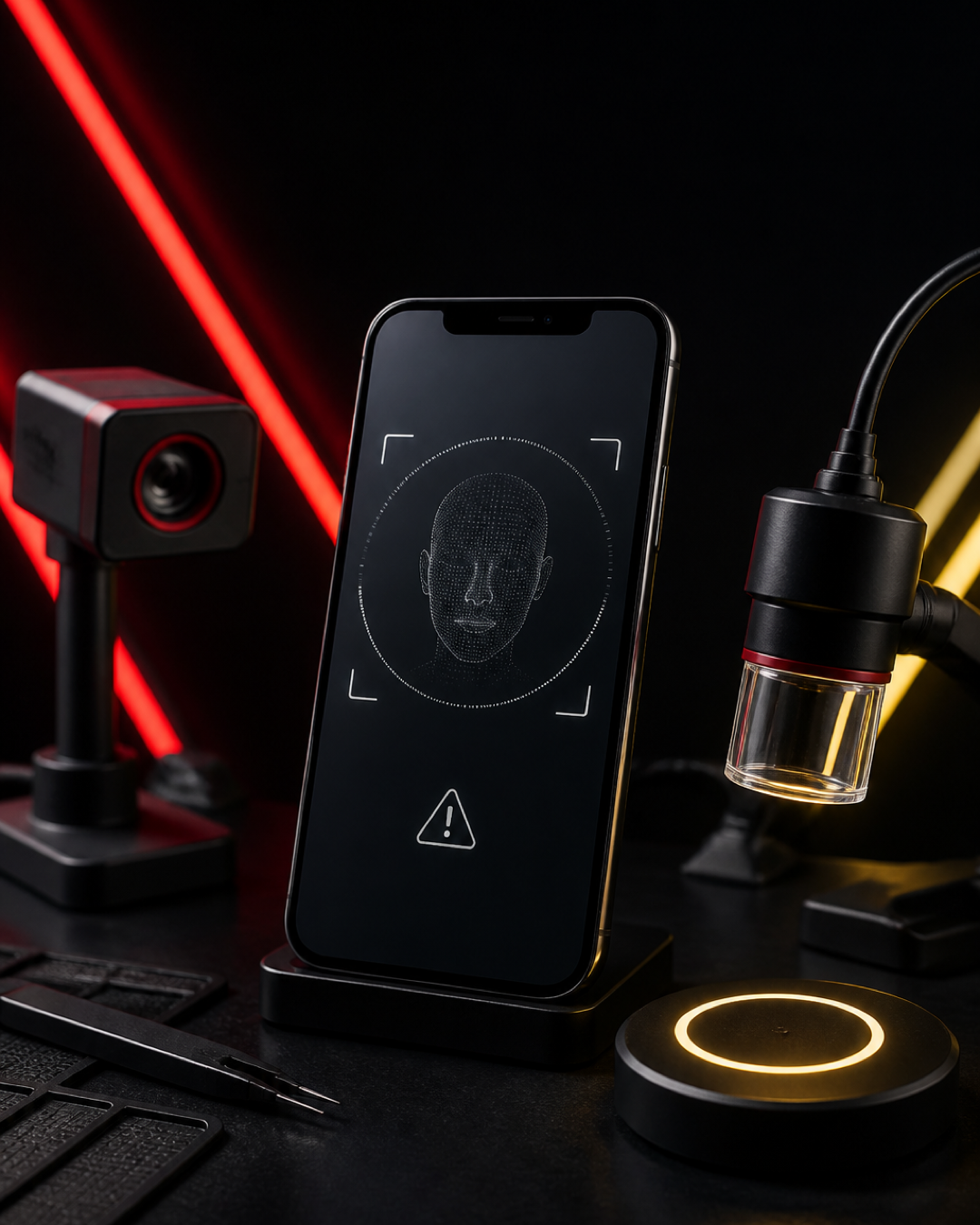
Start with the exact Face ID message
Write down the wording shown by the iPhone. “Face ID is not available,” repeated setup failures, and recognition that works only sometimes are different observations. Also note whether the issue began after a drop, liquid exposure, screen work, a software update, or no obvious event. These details help a technician choose the right checks without assuming the answer.
The four-check Face ID triage
1. Clear the sensor area
Remove anything that covers the top sensor area, including a poorly aligned screen protector or case edge. Clean the front glass gently with a dry microfibre cloth. Do not push tools into the speaker or sensor openings.
2. Test in ordinary conditions
Try Face ID with the phone upright, your face fully visible, and normal indoor light. Record whether passcode unlock still works and whether the front camera opens normally. A camera preview alone does not prove that every facial-recognition component is healthy, but it is useful context.
3. Check settings without erasing data
Confirm that Face ID is enabled for the action you are testing. If the phone allows it, restart once and retry. Avoid repeated resets, unofficial software tools, or opening the phone at home. Those steps can complicate the original symptom.
4. Stop if there is physical damage
If the top glass is cracked, the screen is lifting, the device is unusually hot, or the phone was recently wet, stop testing and do not press the affected area. Bring the device for inspection instead.
What a useful inspection request includes
An effective repair enquiry states the iPhone model, the exact message, when the issue began, and whether the phone was dropped, exposed to liquid, or repaired before. Include whether Face ID fails during unlock, app authentication, setup, or every use. This symptom map is more useful than asking for a part replacement before diagnosis.
Send your iPhone model and Face ID symptom to MRFIX Putrajaya
Preparing the iPhone before visiting
- Back up important data if the phone remains usable.
- Bring the device and any relevant screen-protector or prior-repair information.
- Know the passcode needed for agreed diagnostic tests, but do not send it in a message.
- Photograph any intermittent warning so it can be reviewed even if it disappears.
For broader local preparation advice, read what to check before choosing a phone repair shop in Putrajaya. If the issue includes display or touch damage, compare the checks in the screen-replacement preparation guide; the same principle applies: describe the symptom before requesting a component.

Visit MRFIX Putrajaya
Address: A-6A, 1st Floor, Blok A, Jalan Seluang P8/7, Presint 8, 62250 Putrajaya
Phone: 019-910 0531
Book an iPhone Face ID inspection
Frequently asked questions
Does a failed front camera always mean Face ID hardware has failed?
No. The symptoms should be inspected together; a visible camera preview and facial-recognition functions do not test exactly the same things.
Should I reset the iPhone before an inspection?
Do not erase the phone just to test this issue. Back up important data and record the error first.
Can MRFIX quote the repair from the warning alone?
The warning is not a full diagnosis. MRFIX Putrajaya can inspect the device and explain the available next step after checking its condition.